·
The first thing your customers see is your sign-in screen. So we made it yours
How Versola's sign-in screens look out of the box, how one of seven theme presets restyles them, which five values you can change in the admin console with a live preview, how named tokens and your own CSS take it further, and how a client, the logo and the form texts per language fit in.
Before a customer sees your product, they see a sign-in screen. It’s the one page every user hits, on every device, every time their session ends. On many hosted identity products it’s also the vendor’s page: their logo, their colours, their idea of a button.
We didn’t want that. In Versola the sign-in screens are a theme: one of seven built-in starting points, five values you set in the admin console and, when you need them, named tokens and your own CSS on top. This post shows what you get without touching anything, what one click changes, and how far you can go before you’d need a developer. Every screenshot below comes from the real console and the real forms, with example.com data.
Out of the box
A fresh tenant uses the default theme, which starts from the Versola preset: brand colour #155e75, soft corners, a bold page and a glow behind the card. The default has no tenant logo yet, so the Versola wordmark sits above the card. You’ll replace that in a moment.
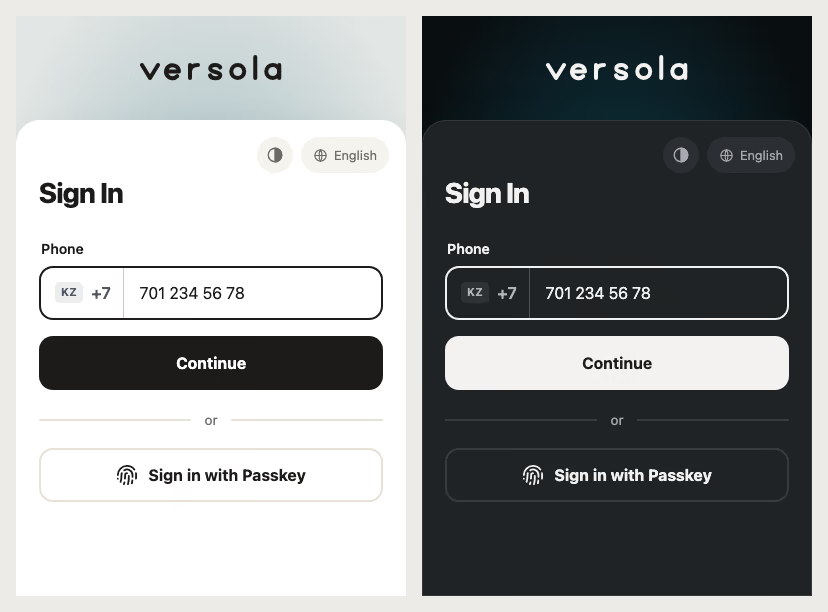
Two things are already decided for you. The screen has a light and a dark scheme, and by default it follows the visitor’s device; the small round button next to the language switcher lets the visitor pick Auto, Light or Dark for their own browser. And the layout starts from a phone: below 520 px the card turns into a sheet anchored to the bottom edge, which is where a thumb is.
One click: pick a preset
A preset is a named combination of the five values. Versola ships seven. They’re part of the build, so you can’t add to the list or edit it, but you can start from any of them.
| Preset | Brand colour | Corners | Page | Background |
|---|---|---|---|---|
| Versola | #155e75 | Soft | Bold | Glow |
| Studio | #ff6b4a | Round | Bold | Glow |
| Fintech | #5b5bd6 | Soft | Neutral | Linear |
| Wellness | #0e9f8e | Round | Soft | Horizon |
| Editorial | #14130f | Sharp | Neutral | Flat |
| Sunny | #f5c518 | Soft | Bold | Glow |
| Berry | #b4348a | Round | Bold | Glow |
Here is the same credential form under four of them, light above and dark below. Nothing else changed: same form, same texts, same markup.
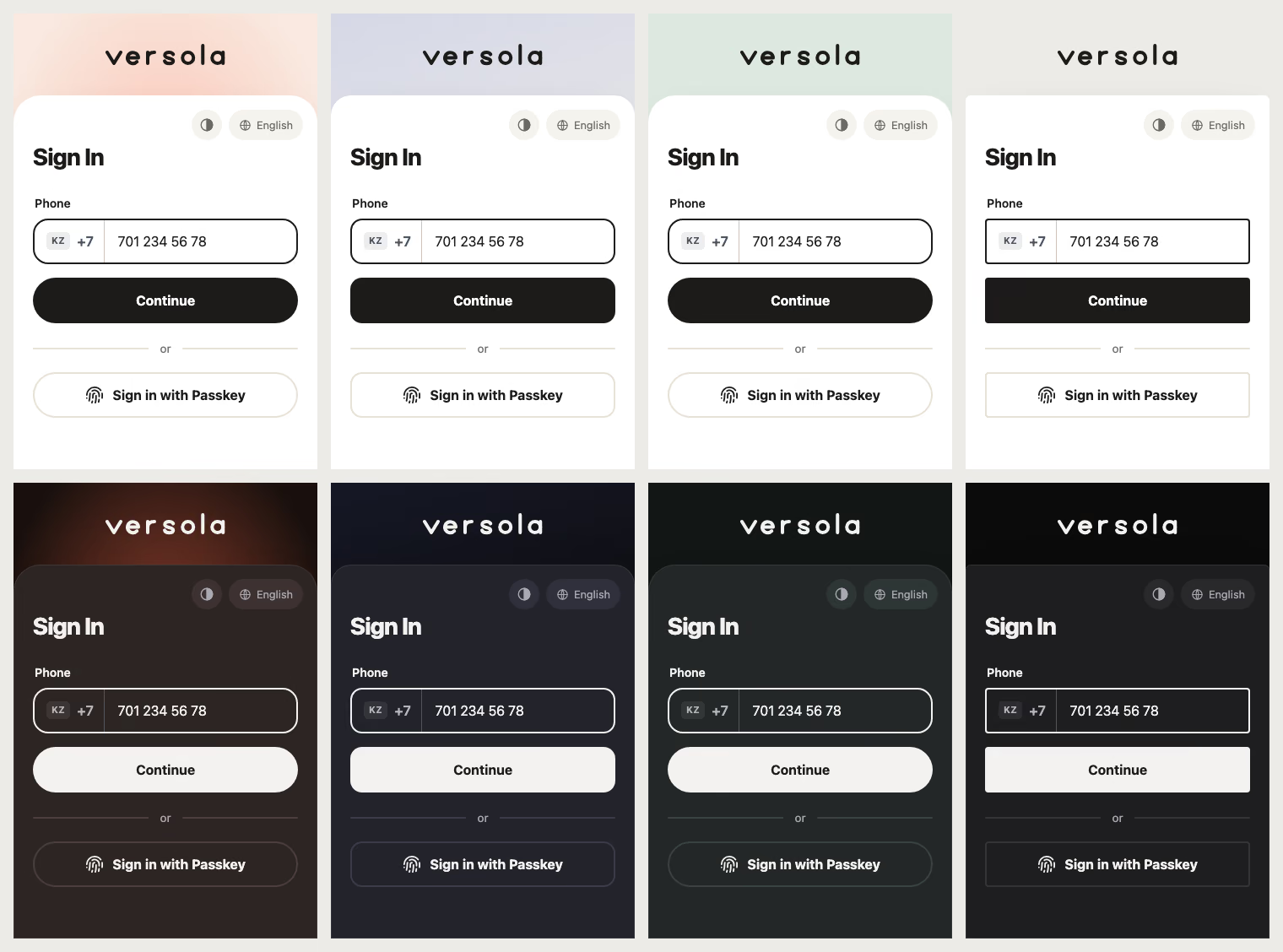
Look at the dark row. Nobody wrote a dark version of Studio. The preset carries a brand colour and a page recipe, and both schemes are derived from them: Studio’s dark page is a deep shade of coral, Editorial’s is near-black with no tint at all. Sunny is the awkward one, a yellow that vanishes on a white card, so the focus ring and the ticks use a darker yellow in the light scheme (#ac8a11) and the brand yellow itself in the dark one.
Five knobs, with a live preview
To make a theme of your own, open Themes and press + Create theme. Give it an ID, pick a preset card, and set any of five values in the Look card:
- Brand colour: nine swatches, or any
#rrggbb. Text on the brand colour is white or near-black, whichever has the better contrast. - Page background: Bold (a deep shade of the brand), Soft (a pale tint) or Neutral (plain grey).
- Background style: Glow, Linear, Horizon or Flat, shown as small cards in your colour.
- Shape: Round, Soft or Sharp, for fields, buttons and the card.
- Colour scheme: Auto, Light or Dark. Auto follows the visitor’s device and keeps the toggle. Light and Dark fix the scheme for everyone and hide the toggle.
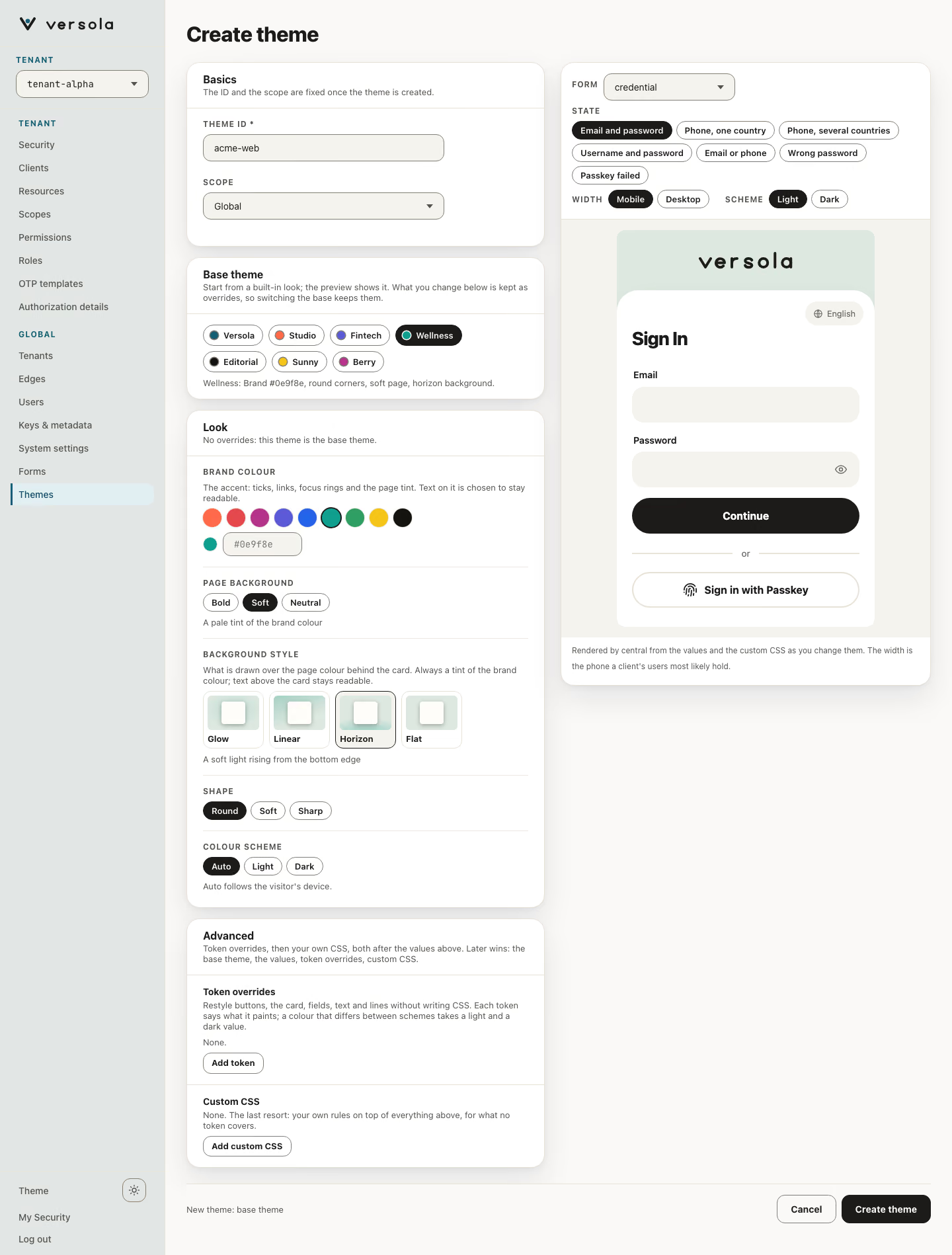
The preview on the right isn’t a mock-up. It’s the credential form rendered with the stylesheet central builds for your values, and it updates as you click. Switch the Form and the State (wrong password, passkey failed, one-time code) to check the screens that aren’t the happy path, and use Light and Dark to check both schemes.
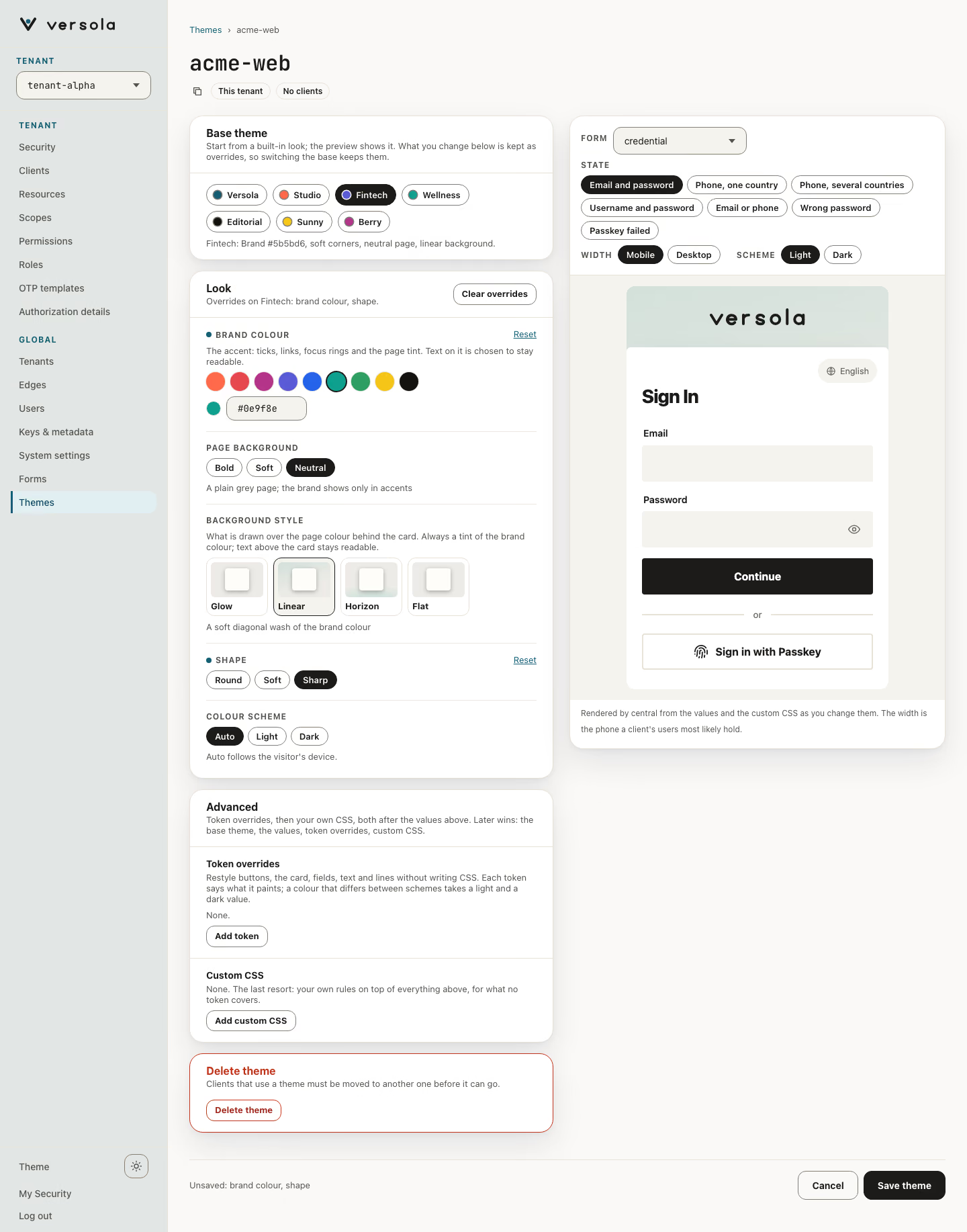
Change a value and the console remembers what is different from the preset. The value gets an Overridden mark and a Reset link, the card header offers Clear overrides, and a bar at the bottom says what is unsaved. Switching to another preset keeps your overrides, which is handy when you can’t decide between Fintech and Wellness but you know the brand is #2f9e63.
One theme per client, and a client’s own tweaks
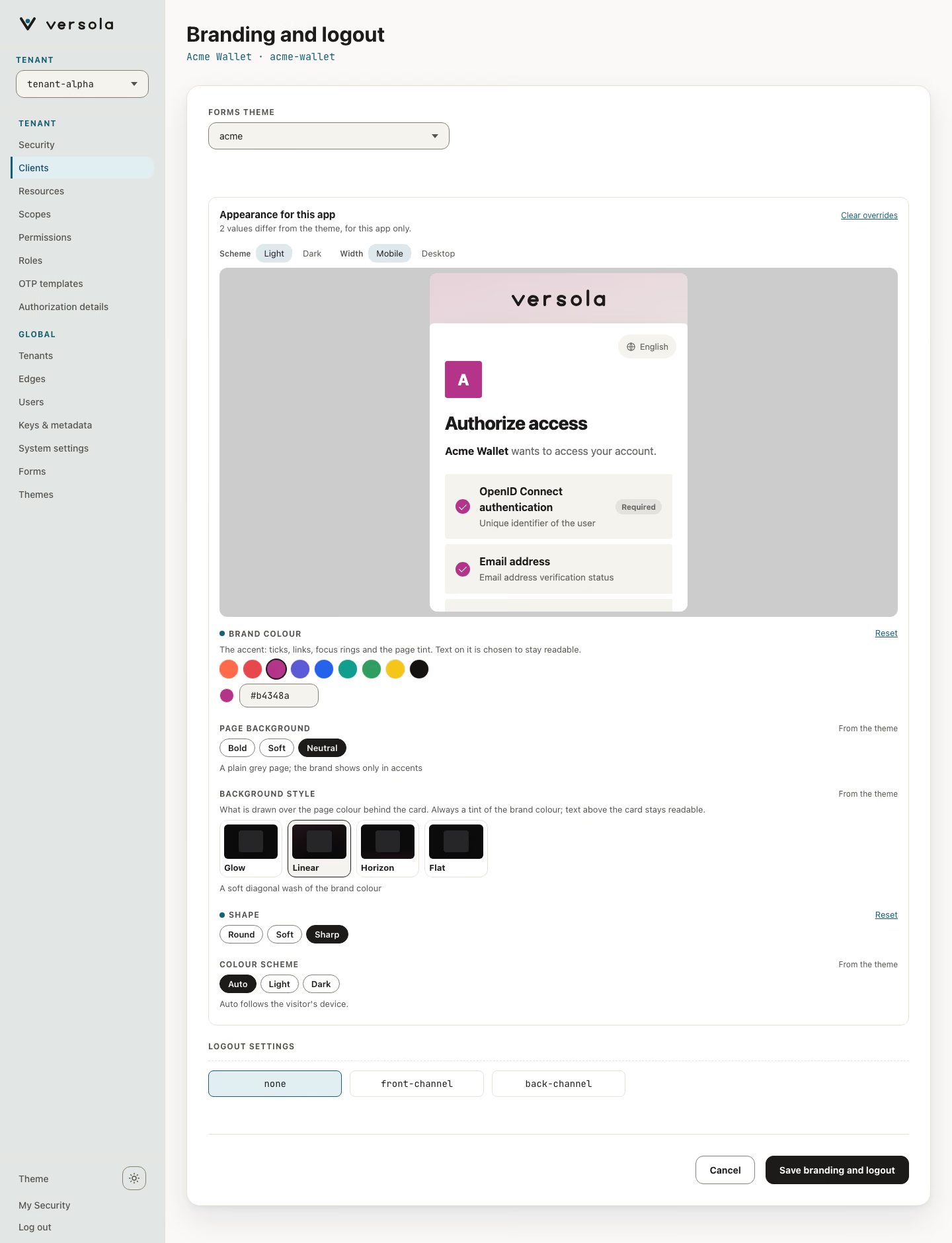
A theme isn’t global. Each client picks its own in Forms Theme, under Branding and logout on the client page, and a client that picks none gets default. That’s how a storefront and a back-office tool share one tenant without sharing a face. A theme that a client uses can’t be deleted until you move the client elsewhere.
A partner app, which is a client that asks users for consent, goes one step further. Its page has Appearance for this app: the same five values, laid on top of the theme it uses, for its own screens only. The theme itself doesn’t change, so every other client looks the same as before.
Your logo and your words
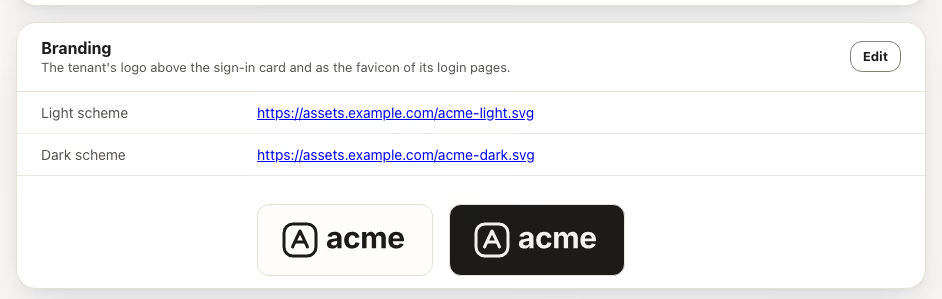
Two things a colour can’t do. The first is the logo. In Security, the Branding card takes two URLs, one logo for the light scheme (dark artwork) and one for the dark scheme (light artwork). It replaces the Versola wordmark above the card and becomes the favicon of the login pages. With no pair, or if either file fails to load, the wordmark stays.
The second is the words. Every form keeps its texts as one JSON object: a key per language code, then each text key under it. Open Forms, pick a form, and the Texts tab shows them side by side with a preview in the language you pick. Change the Russian title, and the preview changes with it.
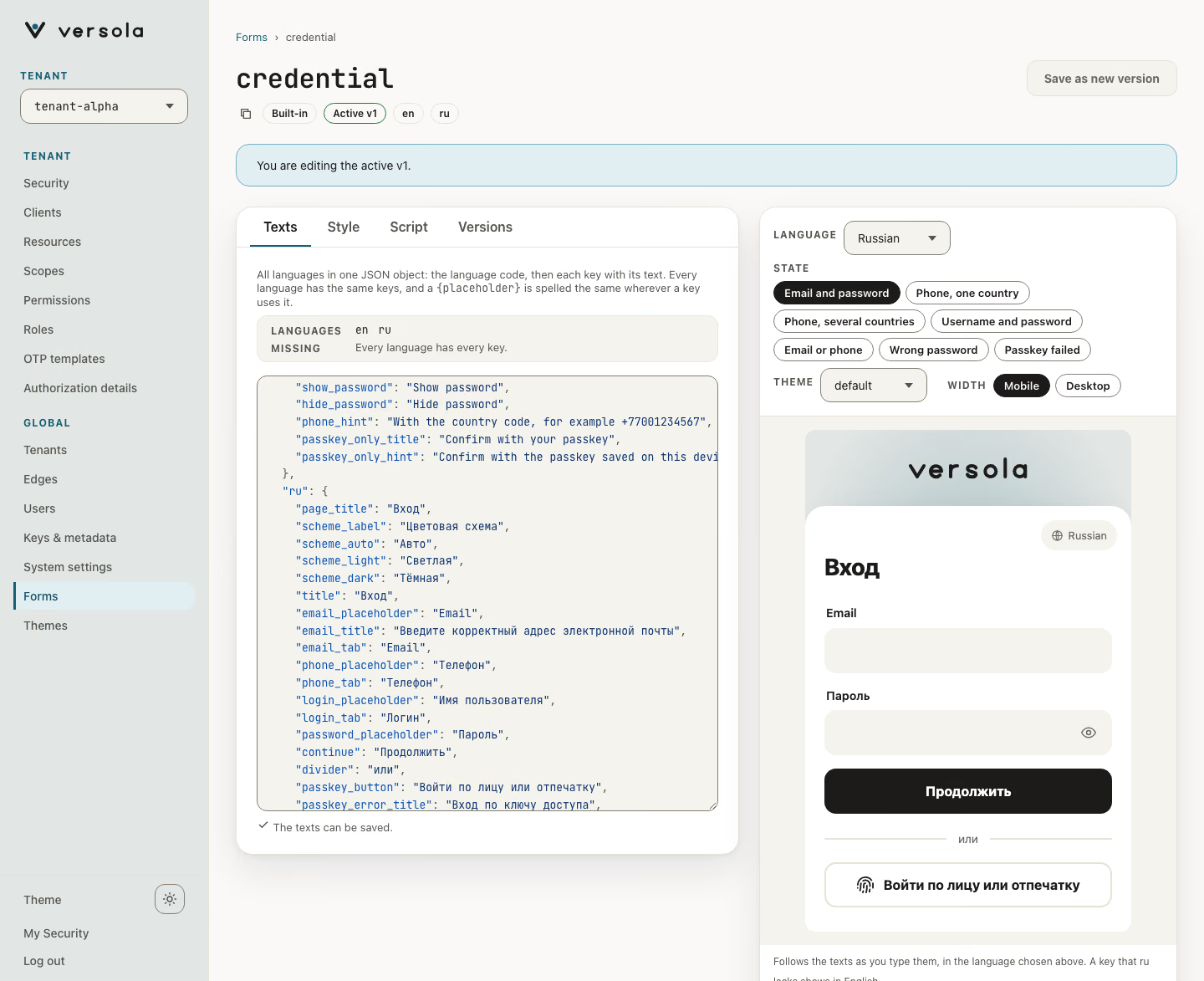
Saving creates a new form version, and it doesn’t go live until you press Set active. auth picks the change up on its next configuration sync, not instantly. So a typo in a sign-in form never reaches users until someone activates the version. A language also has to be active in Locales before the form offers it.
Go further: token overrides and your own CSS
Five values won’t cover every brand. After Look the theme editor has an Advanced card with two more tools.
The first is Token overrides, and it goes further than you’d expect. Buttons, the card, fields, text, links and lines are all named tokens, forty of them in nine groups, and each one says in a line what it paints. Press Add token, pick --btn (the fill of the main button), set #c2410c, and the preview’s button turns orange. A colour that should differ in the dark scheme takes a light and a dark value. No CSS involved, and the console refuses a value that doesn’t fit the token. The full list is in Tokens you can override.
The second is Custom CSS, the last resort: a code editor, collapsed until you press Add custom CSS, for the rules no token expresses.
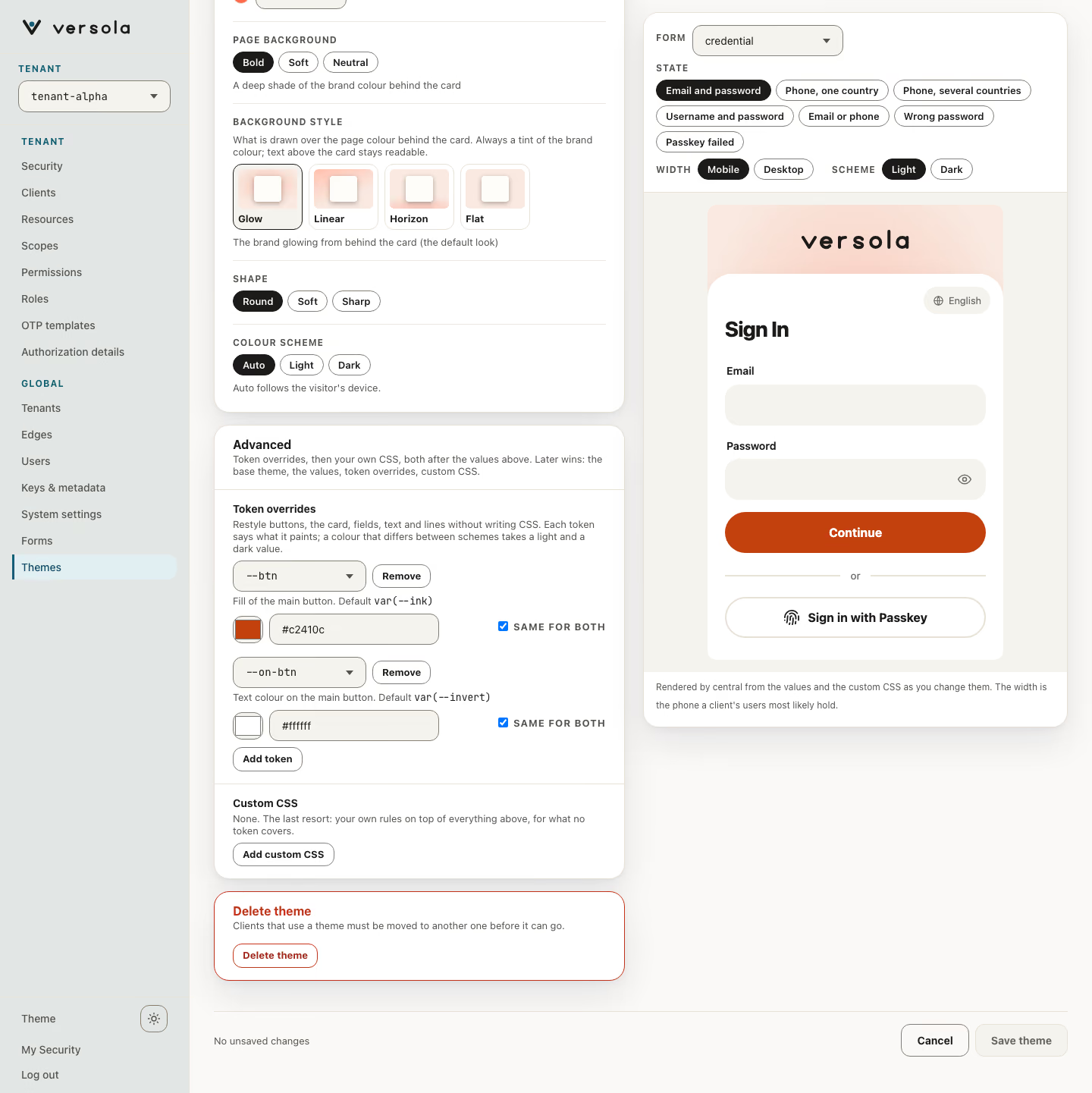
Both are applied after the CSS generated from the five values, token overrides first and custom CSS last, so the order is preset, five values, token overrides, custom CSS, and a later step wins over an earlier one. Set --rs to 8 px and the card has 8 px corners, whatever Shape says. The preview includes everything as you type, and the bar at the bottom says Unsaved: token overrides, custom CSS until you save.
The power has a price. Nothing checks your CSS. If a colour you pick is hard to read on the card, or a fixed width doesn’t fit a phone, your users get exactly that. Class names such as .container can change between releases, so prefer the variables. Check the preview in both colour schemes and at phone width before you save.
How it’s built
The look of a theme is a preset id, up to five overrides, the tokens you set and an optional block of CSS. Versola’s ThemeCss turns the first two into a short block of CSS variables, appended after the base stylesheet common.css; the token overrides and your custom CSS, if any, come after that block. This is the block for Sunny, the yellow one:
:root{--brand:#f5c518;--on-brand:#1c1b19;--rf:14px;--rb:14px;--rs:24px;}
@supports (color: light-dark(#000, #fff)){:root{--focus:light-dark(#ac8a11,#f5c518);--on-focus:light-dark(#1c1b19,#1c1b19);}}
The brand yellow needs dark text, so --on-brand is ink. --rf, --rb and --rs are the radius of fields, buttons and the card. Everything that differs between the light and the dark scheme, such as the focus ring above, is a light-dark() pair inside an @supports rule, so a browser that doesn’t know the function keeps the defaults instead of dropping the declaration. The page colour, the glow and the gradients are variables too, mixed from --brand.
Because it’s variables all the way down, the console doesn’t carry colour formulas of its own: central renders the preview with the same code that auth uses to serve the page. And we eat the same food. This website is built on the tokens of the default login theme, and the design reference lists them.
What it doesn’t do
The console edits those five values, the token overrides you add and your CSS. It checks token values, not your CSS, and it doesn’t keep either readable for you. The seven presets are fixed by the build, the set of fields on a form isn’t a theme setting, and the brand colour has to be a #rrggbb (no names, no rgb()), because the value is written straight into a stylesheet. A client’s own appearance exists only for partner apps. The theme editor previews dark only while the colour scheme isn’t fixed.
Is five values enough? For most sign-in screens, yes: it’s one form with a logo, and the part users remember is the colour, the corners and the page behind it. When it isn’t, the forty tokens are the next step, and CSS the one after. If the token you need isn’t on the list, tell us.
Try it
- Step by step, with the console: How to brand the sign-in screens and How to translate a form.
- Every field of the editor: Themes.
- No install: a cut-down copy of the theme editor, on four real forms, is on the landing page.